Accessing Spaces & Storage
Research Storage
You can access storage via GUI and terminal. Below, we detail different options to access storage.
Accessing Spaces and Storage via GUI
Mapped Drive (PC)
Using the Windows Explorer (the File/Folder icon in the toolbar at the bottom of your screen) to access the research storage via a mapped drive is a convenient way to access your home folder and/or project spaces using a familiar interface.
Connect to the HBS VPN if you are not on the HBS campus or are not using HBS Secure Wireless.
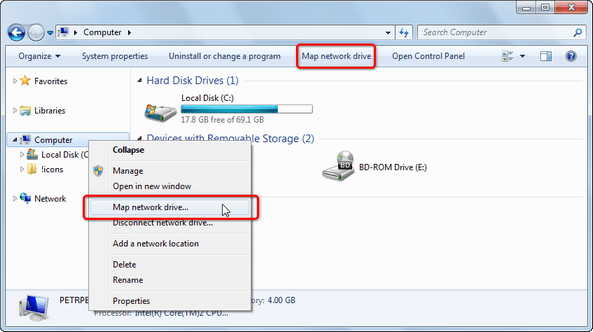
Right-click on the "Computer" icon on the desktop and select "Map Network Drive." If you do not have a "Computer" icon on your Desktop, then open a Windows Explorer window via the File/Folder icon in your bottom-of-the-screen toolbar, right-click on the "Computer" icon, and then select "Map Network Drive".
In the Map Network Drive dialog, choose the appropriate drive letter, and in the Folder field:
To map a drive to your home directory, specify the path \\research\username. For example, \\research\jharvard.
For project spaces on the research storage, your path will be either be in projects\ or projects2\. You should have received this information in your project space confirmation; and make a note of this in the directions below.
To map a drive to a project space on research storage, specify the path \\research.hbs.edu\projects\projectname. If you have more than one project space, you may want to connect to \\research.hbs.edu\projects, which will enable you to access any project spaces that you have permission to use.
Check the "Reconnect at logon" option only if this computer is typically on-campus. And click "Connect using different credentials" if this is not an HBS-issued machine. Click "Finish".
If the Windows Security appears and prompts you for your username and password, enter your grid / HBS username (the part preceding @hbs.edu), and your password. NB!! If you are connecting from a non-HBS-issued machine, please add HBS\ before your username (e.g. HBS\jharvard). This specifies the proper Windows domain for authenticating your credentials.
Accessing Spaces and Storage via Terminal
Whether connecting via MacOS Terminal, Windows SecureCRT, Windows Putty, or any other terminal-like program, you will be connecting to the HBSGrid via the login node.
The various storage locations can be found at the following Unix paths:
Home folders $HOME, or/export/home/role/username Project folders /export/projects/projectname, or/export/projects2/projectname Scratch storage /export/scratch
'role' will depend on your position/affiliation at HBS; and 'username' is your account name. Use common Unix commands such as cd path or pushd path to change from one directory to another.
For information about how to transfer data from any given machine to these locations, see our Transferring Files or Copying Data web pages.)